
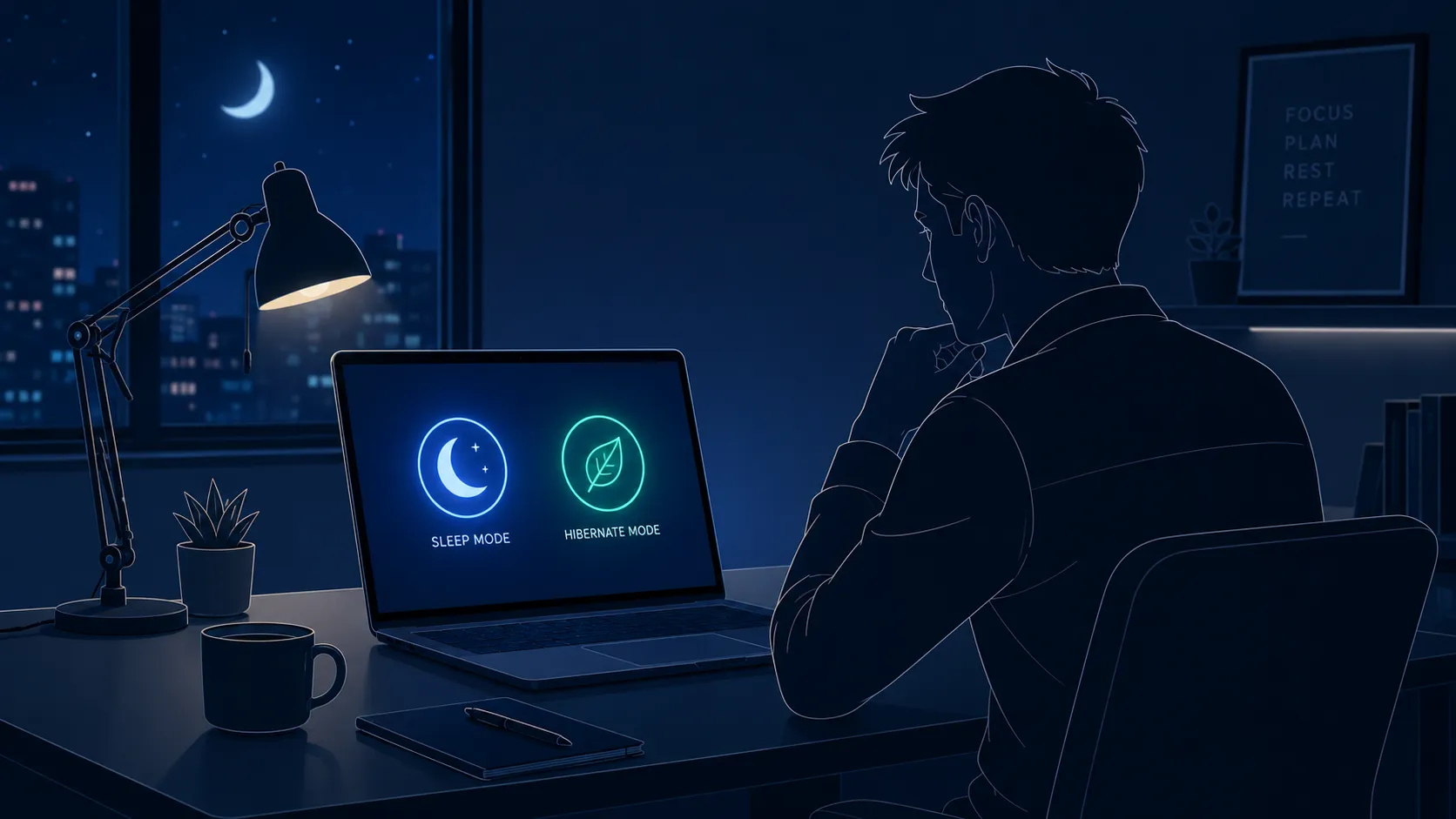
If you’ve ever clicked the Power menu in Windows, you’ve probably noticed two options that seem surprisingly similar: Sleep and Hibernate. At first glance, both appear to do the same thing. They save your work, turn off most system activity, and allow you to return to your desktop later without reopening every application. Yet beneath the surface, these two power modes operate in very different ways.
Many Windows users choose one option without understanding what actually happens inside the computer. That can lead to unnecessary battery drain, slower startup times, or even frustration when a laptop wakes up unexpectedly inside a backpack. Understanding the distinction between Sleep and Hibernate is essential if you want to maximize performance, protect your data, and extend battery life.
According to official Microsoft documentation, Sleep mode keeps your current session stored in memory while using a very small amount of power, whereas Hibernate writes the entire session to storage and powers down almost completely. This fundamental difference affects speed, energy consumption, reliability, and convenience. Let’s explore what happens behind the scenes and determine which option makes the most sense for your specific needs.
Understanding Windows Power Management
Modern Windows systems are designed to balance performance with energy efficiency. Computers don’t need to run at full power every second of the day. Instead, Windows uses different power states that allow hardware components to reduce energy consumption when they’re not actively being used.
Think of your computer like a car. Leaving the engine running while parked wastes fuel. Turning the engine completely off saves fuel but requires restarting everything. Windows power modes sit somewhere between those two extremes. They preserve your current work while reducing resource usage.
Microsoft’s power-state architecture includes several modes, but Sleep and Hibernate are the most commonly used by everyday users. These modes exist because different situations require different balances between convenience and energy savings. A person stepping away for lunch has different needs than someone putting a laptop away for an entire weekend.
Over the years, Windows has refined these power states significantly. Modern versions of Windows 10 and Windows 11 incorporate advanced power management technologies that allow faster wake times, better battery preservation, and improved recovery from low-power states. Understanding these improvements helps users make smarter decisions about which mode to use.
What Happens Inside Your Computer During Sleep Mode
Sleep mode is often described as putting your computer into a light nap. The operating system pauses active processing, powers down many hardware components, and dramatically reduces energy usage. However, one critical component remains active: RAM.
Random Access Memory continues receiving power while the computer sleeps. This memory contains all your open applications, browser tabs, documents, and system information. Since RAM remains powered, Windows can instantly restore your session when you wake the computer.
Imagine placing a bookmark inside a book rather than closing it and storing it on a shelf. Sleep mode keeps the book open to the exact page you were reading. When you return, you can continue almost immediately without searching for your place.
This is why Sleep mode resumes so quickly. Instead of rebuilding the entire operating environment, Windows simply reactivates hardware components and resumes operations from RAM. Microsoft notes that Sleep uses very little power while allowing near-instant access to your work. The tradeoff is that RAM still requires electricity. If power is lost completely or a battery becomes fully depleted, data stored exclusively in memory can disappear. Although modern Windows devices often include safeguards against sudden power loss, Sleep mode remains dependent on a continuous power source.
How Hibernate Saves Power Differently
Hibernate takes a completely different approach. Rather than keeping information inside powered memory, Windows copies the entire contents of RAM to a special file stored on your SSD or hard drive. This file is commonly known as hiberfil.sys.
After saving the session to storage, Windows powers off almost completely. Since storage devices retain information without electricity, the computer no longer needs to keep RAM energized. Power consumption drops to levels very close to a full shutdown. Think of Hibernate like taking a photograph of your entire workspace before leaving. Every open window, application, and document is captured and saved. When you return, Windows reconstructs that exact environment from the stored image.
The restoration process naturally takes longer than waking from Sleep because data must be read back from storage into memory. Even with today’s fast NVMe SSDs, loading gigabytes of saved memory requires more time than simply reactivating powered RAM.
The major advantage is resilience. If a laptop remains hibernated for weeks or loses all battery charge, the saved session remains intact. Microsoft’s documentation specifically notes that Hibernate preserves the system state even after complete power loss because the information exists on non-volatile storage.
Sleep vs Hibernate Comparison
The easiest way to understand the difference is through a direct comparison.
| Feature | Sleep | Hibernate |
|---|---|---|
| Session Stored In | RAM | SSD/HDD |
| Power Usage | Very Low | Almost Zero |
| Wake Speed | Nearly Instant | Slower |
| Battery Drain | Continues Slowly | Minimal |
| Survives Complete Power Loss | No | Yes |
| Ideal For | Short Breaks | Long Breaks |
Power consumption is perhaps the most significant distinction. Sleep mode maintains power to memory, while Hibernate powers the system down after saving memory contents to storage. Microsoft identifies Hibernate as one of the lowest-power system states available. Resume speed, however, strongly favors Sleep. Users can often begin working again within seconds. Hibernate requires additional time to reload the saved system image. Although modern SSDs have reduced this gap considerably, Sleep remains noticeably faster.
Safety also differs. Sleep is vulnerable to total power loss, while Hibernate provides a secure snapshot of the system that survives battery depletion and unplugged power sources.
Speed vs Battery Life in Everyday Use
Most users care about two things: how quickly their computer is ready to use and how long the battery lasts. Sleep and Hibernate represent opposite ends of this balancing act.
Sleep mode prioritizes speed. If you frequently leave your desk for meetings, coffee breaks, or lunch, Sleep provides an excellent user experience. Open applications remain ready, browser sessions stay active, and productivity resumes almost instantly. The convenience can save minutes every day.
The downside is continuous power consumption. While modern laptops use relatively little energy during Sleep, battery levels still decline over time. Leaving a sleeping laptop untouched for several days may result in substantial battery loss depending on hardware configuration.
Hibernate prioritizes battery preservation. Because the system is effectively powered down, battery consumption becomes negligible. Users traveling for extended periods often benefit from Hibernate because they can resume exactly where they left off without worrying about finding a dead battery.
Real-world usage often depends on timing. If you’re returning within an hour or two, Sleep is usually more practical. If you’re stepping away overnight, during a weekend, or while traveling, Hibernate generally becomes the smarter choice. Microsoft’s recommendations similarly position Sleep for short absences and Hibernate for longer periods away from the device.
Which Option Is Better for Laptops and Desktops?
The answer changes depending on the type of computer.
For laptops, battery life is always a consideration. Users frequently move between locations, work remotely, and operate without constant access to power outlets. Hibernate offers significant advantages during travel because it prevents unnecessary battery depletion while preserving open work.
Laptop users often benefit from a hybrid strategy. Sleep works well during daily movement between meetings or classes. Hibernate becomes ideal during overnight storage, flights, vacations, or long commutes.
Desktop computers present a different scenario. Since they usually remain connected to wall power, battery drain isn’t a concern. Sleep mode often provides the best balance between convenience and energy efficiency. A desktop can remain in Sleep for extended periods while consuming only a small amount of electricity.
That said, Hibernate still has value on desktops. Users who maintain complex workspaces with dozens of applications open may prefer Hibernate before extended vacations or during periods when power outages are possible. The ability to restore a complete working environment without leaving the system actively powered offers an additional layer of protection.
Ultimately, neither mode is universally superior. The best choice depends on how long you’ll be away and whether battery conservation matters.
Situations Where Sleep Mode Makes More Sense
Sleep mode shines in situations requiring quick access and frequent interruptions. Imagine you’re working on a presentation and need to attend a thirty-minute meeting. Shutting down completely would be inconvenient. Hibernate would work, but the extra loading time provides little benefit.
Sleep keeps everything ready. Open spreadsheets, browser tabs, communication apps, and design software remain exactly where you left them. The system resumes almost instantly, allowing you to continue working without disruption.
Students also benefit from Sleep when moving between classes. Office workers often rely on Sleep throughout the workday. Creative professionals editing videos, managing large design projects, or handling multiple software tools simultaneously appreciate the rapid resume capability.
Sleep is particularly useful when power availability is predictable. If you’re near an outlet or docked at a workstation, the minimal energy consumption becomes less important than convenience.
Many users underestimate the productivity benefits of immediate availability. Saving even a minute or two every time you return to your computer can accumulate into meaningful time savings over weeks and months.
Why Hibernate Is Useful for Long Breaks
Hibernate becomes invaluable when uncertainty enters the equation. Perhaps you’re leaving work on Friday afternoon and won’t return until Monday morning. Maybe you’re boarding a flight or storing a laptop for several days.
In these situations, preserving battery life becomes far more important than saving a few seconds during startup. Hibernate eliminates the risk of discovering an empty battery upon return.
Travelers frequently rely on Hibernate because sleeping laptops can occasionally wake unexpectedly due to updates, peripherals, or configuration issues. Community discussions and user reports regularly highlight cases where sleeping devices consume more power than expected during transport. Hibernate largely eliminates these risks because the system is essentially powered off after saving the session. Hibernate also serves as a safety net during periods of unreliable power. Since the session exists on storage, unexpected battery depletion or power interruptions do not destroy the saved workspace.
For professionals handling critical projects, this extra layer of protection can provide peace of mind. The slight delay during restoration is often a small price to pay for preserving hours of work.
Common Problems Linked to Both Modes
Despite their usefulness, Sleep and Hibernate are not perfect.
One common issue involves wake-up failures. Sometimes a computer refuses to resume properly, resulting in a black screen or requiring a forced restart. These problems are often linked to outdated drivers, firmware incompatibilities, or hardware configuration issues. Microsoft specifically advises ensuring devices use current drivers when wake-related problems occur. Battery drain represents another frequent complaint. Some users place laptops into Sleep expecting negligible power usage, only to discover substantial battery loss later. Modern Standby configurations, connected devices, background tasks, and accidental wake events can all contribute to unexpected energy consumption. Hibernate introduces its own challenges. Because the system writes memory contents to storage, hibernation files can consume significant disk space. Systems with large amounts of RAM require correspondingly larger hibernation files.
There are also cases where Hibernate or Sleep options disappear entirely from Windows menus. Community reports frequently trace these issues to firmware settings, unsupported hardware states, or driver conflicts. Fortunately, most power-state issues can be resolved through updates, driver maintenance, and proper power configuration.
Adjusting Windows Settings for Better Performance
Windows provides extensive control over Sleep and Hibernate behavior. Users can customize idle timers, power-button actions, lid-close behavior, and automatic hibernation schedules.
To access these options in Windows 11:
- Open Settings
- Select System
- Choose Power & Battery
- Open Screen, Sleep, and Hibernate Timeouts

Colby Renwick is a 27-year-old American blogger from Madison, Wisconsin, specializing in healthy eating, meal planning, and food education. His writing combines careful research with approachable advice, making complex health topics easier to understand. Through his work for healthybreakfast.xyz, he publishes accurate, reader-friendly articles designed to support long-term healthy habits with credibility and consistency.